
Setting up products for stock control for use with the invoicing subsystem.
Similar to the opening of new ledgers for accounts, you may create new stock control ledgers by clicking the New/Edit... command from the Ledger menu:
You should see the following:

And just like in the case of opening new accounts ledgers, you may create stock control ledgers by entering the relevant information in it, the difference is that you need to choose Stock Control under the Type of Business / Function option. One important field that you need to key in is the Accounts Linkup field, where you key the ledger number of the accounts ledger. Without entering this field, your products may not have reference back to the name of suppliers and customers. Click the Save button when you are done.
Now, to use the ledger that you have just created, click the Ledger menu and choose Select... :
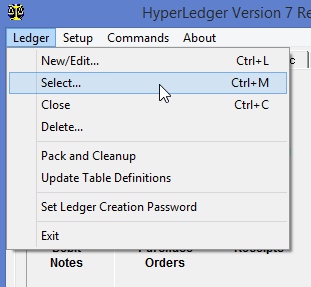
A list of ledgers will appear and you may choose the ledger that you want to
use by double-clicking it: If you choose a Stock Control Ledger, the screen
would then show Stock Control commands:
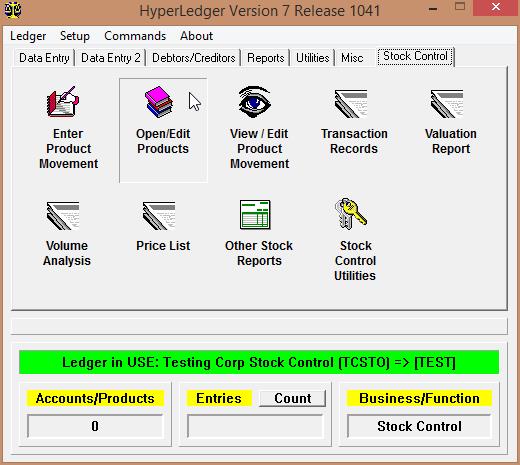
As you can see, some of the commands have similarities with the Accounts Menu. In fact the first 3 commands function the same way like the Accounts Menu, with the main difference being the use of IN instead of DEBIT and OUT instead of CREDIT.
Notice the Ledger in USE status has the current stock ledger pointing back to an accounts ledger.
Just like with the accounts, you need to create new products before you may enter transactions concerning them. Click the Open/Edit Products icon, and you would see a form like this:
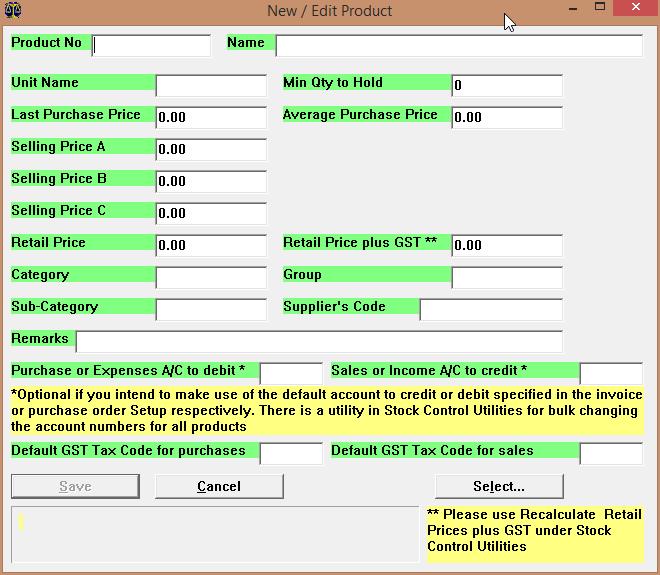
For product numbers, you may key in up to 16 characters. If you do not have much products, or if you want to have product numbers that are easily remembered, just enter product numbers of your choice, which may be alphanumeric. For some people, they may choose to key in the barcodes of their products, such as the EAN codes on most retail products, which is 13 characters long. In the Name field, you may describe the product up to 50 characters.
For unit names, you may key in meaningful units such as boxes, units, pcs, kg, meter, packs etc.
The prices fields are very useful fields if you want to automate the setting of prices for your customers depending on their price group. For example if customer XYZ in the accounts has been set as price group B, then all the B prices of products in the stock control ledger would be used in the Invoicing subsystem. In other words, the Prices A, B, C works as a discount policy. If a customer has not been set a price group, then the Retail price would be used. (To set a price group for a customer, click the Enter Details button in Open/Edit Accounts)
For those who intend to issue Cash Bills (also called Simplified Tax Invoice) under GST, there is another important price field - Retail Price plus GST, because unlike normal invoices, simplified tax invoices output every line amount inclusive of GST, whereas invoices output exclusive of GST. Normally you do not need to key in this price because you can make use of the Recalculate Retail Prices plus GST under the Stock Control Utilities to calculate for all products.
The Category field is usually meant for categorizing your products into various categories. For example CF (Canned Foods), TLT (Toiletries), FF (Fresh Food) etc.
The Group field is usually used to identify the supplier of the product.
Both the Category and Group fields are useful in the analysis of sales and purchases of your products, and there are many reports available in HyperLedger that use the two fields.
The stock control ledger may not necessarily be used for physical products only. You may use it to create items that are used in invoices such as services. Obviously these intangible products have no IN and OUT movements and balances. They may be created in order to automate the creation of invoices and to post correctly to the various income accounts. That is why in the form, there are 2 fields for this purpose - Purchase or Expense A/C to debit and Sales and Income A/C to credit. For example, you may create a product called Bookkeeping Fees in the stock control that you may use in the Invoicing subsystem, the proper income account credited. You may double-click on the 2 account number fields to choose the correct accounts to debit or credit, if you have set up your accounts linkup properly when opening the stock control ledger. You may also use Bulk Changing Account to debit or credit under the Stock Control Utilities to set account numbers for all products.
The last 2 fields are used for GST purposes. You may double-click on them to choose the default tax codes, or you may enter them manually. These 2 codes would be used when a product is picked during the creation of invoices and purchase orders. With these two fields, the creation of invoices and purchase orders would be much easier because the user does not need to look up for the correct tax codes for every product, service and expense. If your products are mostly of only the standard rated type, you may skip this fields and use the Bulk Changing Default Tax Codes under the Stock Control Utilities to set all tax codes for all products.
As with the accounts ledgers, you may enter product movement directly via the Enter Product Movement command and to edit the entries using the View Product Movement command. But with HyperLedger, that manual entering of the product movement may be avoided by using the Invoicing subsystems in the accounts ledgers, so you can avoid a lot of unnecessary work.